

Accidentally deleting important files is a universal experience, but the good news is that recovery is often possible. Whether you're wondering how to recover deleted files on your computer or phone, this guide covers every method available in 2026 — from simple built-in tools to advanced recovery software.
Recover Files from Recycle Bin or Trash
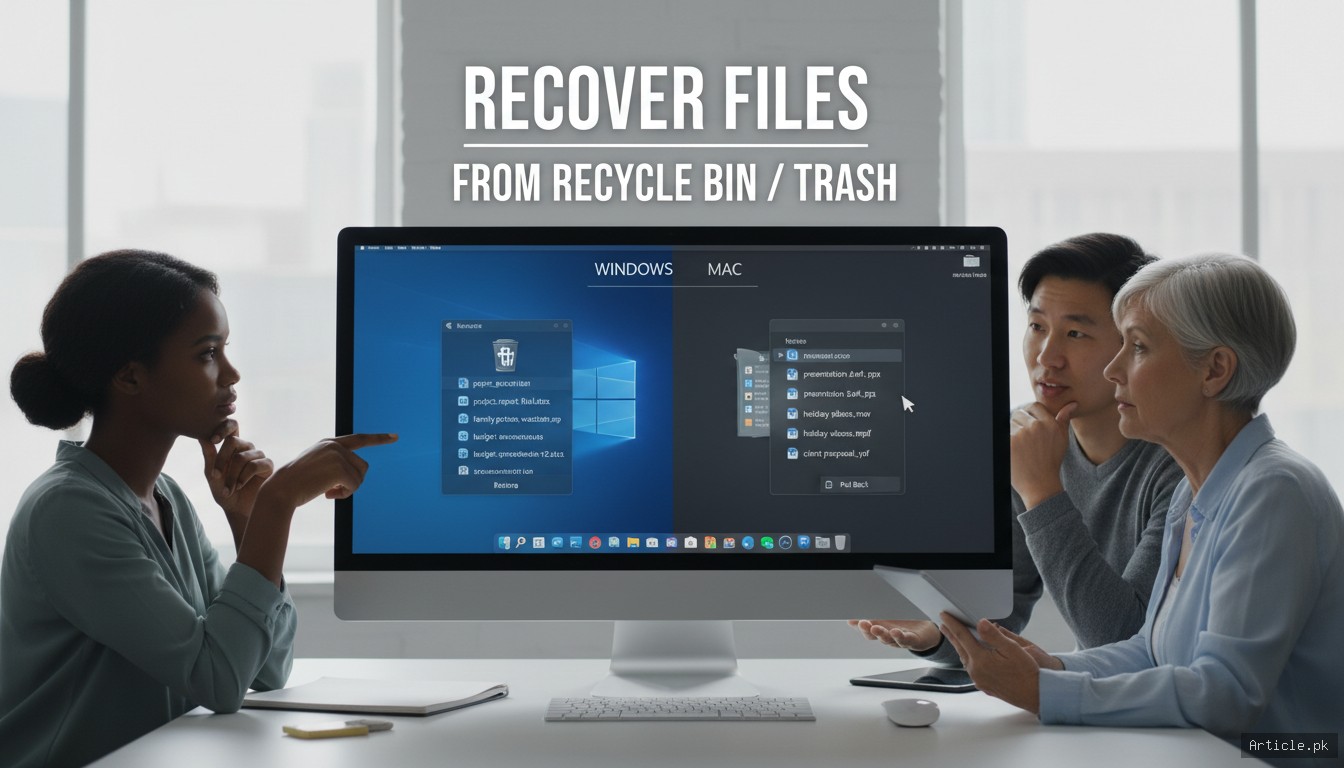
The first place to check is always the simplest — your Recycle Bin (Windows) or Trash (Mac). When you delete files normally, they go here first.
Windows
- Open the Recycle Bin on your desktop
- Find the deleted file (use the search bar or sort by date)
- Right-click the file and select Restore
- The file returns to its original location
Mac
- Click the Trash icon in the Dock
- Find your deleted file
- Right-click and select Put Back
Important: If you emptied the Recycle Bin or Trash, the files won't be here. Move on to the next methods.
Use Built-In Backup Tools

Windows File History
If you had File History enabled before the deletion, you can restore previous versions of files:
- Navigate to the folder where the file was stored
- Right-click the folder and select Restore previous versions
- Browse through available versions by date
- Click Restore to recover the file
Mac Time Machine
Time Machine is Mac's built-in backup solution. If you have a Time Machine backup:
- Open the folder where the file was located
- Click the Time Machine icon in the menu bar and select Browse Time Machine Backups
- Navigate through the timeline on the right side
- Select the file and click Restore
Cloud Storage Recovery
If your files were synced with cloud storage, check these locations:
- Google Drive: Check Trash (files stay for 30 days)
- OneDrive: Check Recycle Bin (files stay for 30-93 days)
- Dropbox: Check Deleted Files (recoverable for 30 days on free, 180 days on paid)
- iCloud: Check Recently Deleted (30 days)
Free File Recovery Software
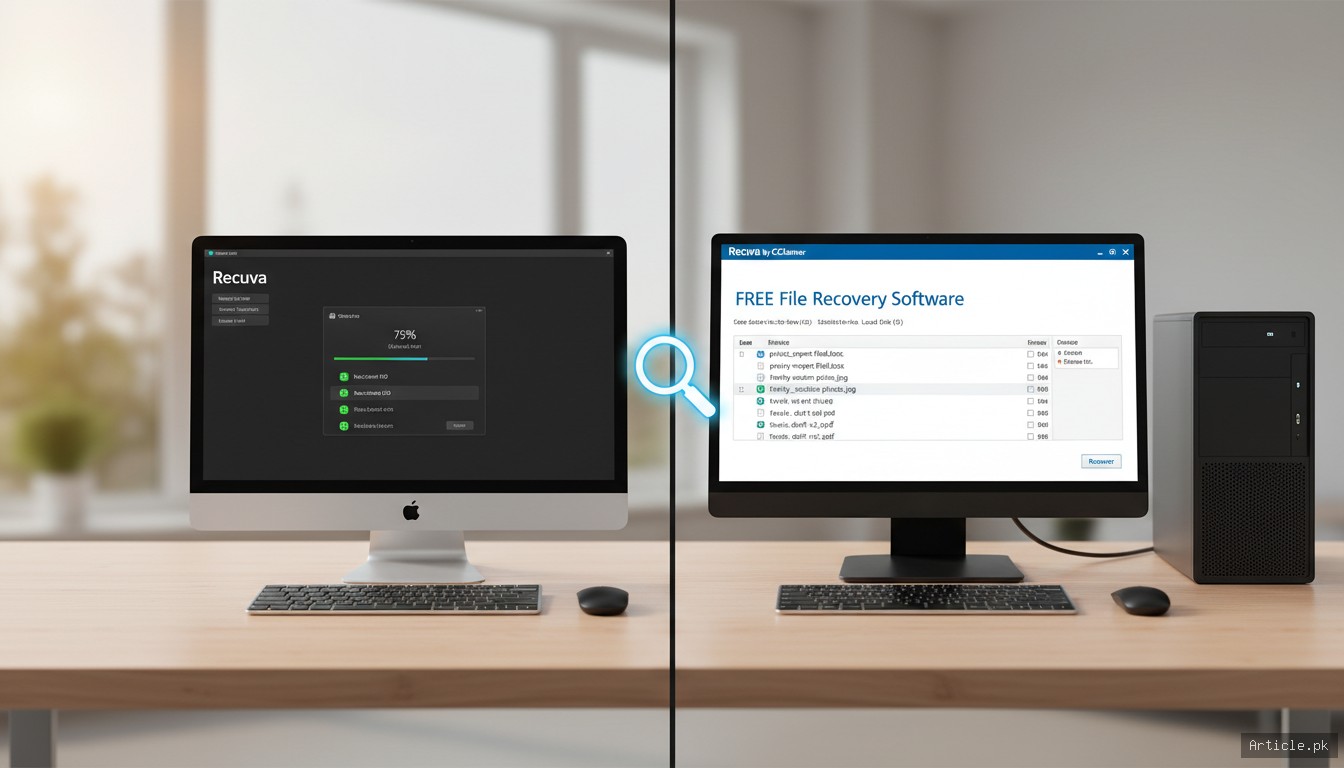
When built-in tools don't help, file recovery software can scan your drive for recoverable data:
Recuva (Windows)
Recuva by CCleaner is one of the most popular free recovery tools. It offers a simple wizard-based interface and can recover files from hard drives, USB drives, and memory cards. The deep scan option can find files that quick scans miss.
TestDisk / PhotoRec (Windows, Mac, Linux)
TestDisk is an open-source tool that recovers lost partitions and makes non-booting disks bootable again. PhotoRec is its companion tool specifically designed for file recovery. While the interface is command-line based, it's extremely effective and works across all operating systems.
Windows File Recovery (Windows)
Microsoft's own free recovery tool, available from the Microsoft Store. It's command-line based but effective. Basic usage: winfr C: D: /regular /n \Users\YourName\Documents\
Recover Deleted Files on Phone
Android
- Google Photos: Check Trash (60 days for backed-up, 30 days for local)
- File Manager Trash: Many Android file managers have their own trash folders
- Google Drive: If files were synced, check Drive Trash
- DiskDigger app: Can recover photos from internal storage (root not required for photos)
iPhone
- Photos App: Check Recently Deleted album (30 days)
- iCloud.com: Check Recently Deleted in iCloud Drive
- iTunes/Finder Backup: Restore from a previous backup (replaces current data)
- Third-party tools: Tools like iMobie PhoneRescue can scan iOS backups for deleted files
Tips to Maximize Recovery Success
- Act quickly: The sooner you attempt recovery, the better your chances. New data can overwrite deleted files.
- Stop using the drive: Don't save new files to the drive where files were deleted
- Don't install recovery software on the same drive: Install it on a different drive or USB
- Use deep scan: If quick scan doesn't find your files, try deep scan (takes longer but finds more)
- Check file names: Recovered files may have generic names — check content to identify them
Frequently Asked Questions
Can permanently deleted files be recovered?
Yes, in many cases. When you "permanently" delete a file (empty Recycle Bin), the data isn't immediately erased — the space is just marked as available. Until new data overwrites that space, recovery software can find and restore the file. However, SSDs with TRIM enabled may erase data more quickly than traditional hard drives.
How long do I have to recover a deleted file?
There's no fixed time limit — it depends on how much new data is written to the drive. On a lightly used drive, files may be recoverable for weeks or months. On a heavily used system drive, they could be overwritten within hours. The key rule is: act fast and minimize drive usage.
Is file recovery software safe to use?
Reputable tools like Recuva, TestDisk, and Windows File Recovery are safe. Avoid downloading recovery software from unfamiliar websites, as some may contain malware. Stick to official sources and well-known tools recommended by tech publications.
Can I recover files from a formatted drive?
Often yes, especially after a quick format. Quick formatting only erases the file system index, not the actual data. Full formatting is harder to recover from. Tools like TestDisk and professional recovery software have the best success rates for formatted drives.
Conclusion
Knowing how to recover deleted files can save you from data loss disasters. Always start with the simplest methods — Recycle Bin, Trash, and cloud storage trash folders. If those don't work, try built-in backup tools like File History or Time Machine. As a last resort, free recovery software like Recuva or TestDisk can often retrieve files that seem permanently gone. The most important thing is to act quickly and avoid writing new data to the affected drive. And going forward, set up regular backups — the best file recovery strategy is one you never have to use.

Interesting! Guide) ke baare mein kya khayal hai?
Great read! Kya aap backup explain kar sakte hain?
You must be logged in to post a comment.