

1. What Is WHMCS?
WHMCS (Web Host Manager Complete Solution) is a widely used billing and automation software designed for web hosting companies. It helps manage client accounts, automate recurring billing, handle domain registrations, and integrate with various hosting control panels like cPanel, Plesk, and DirectAdmin.
One of WHMCS’s core functions is processing orders, whether manually created by admins or automatically generated through the client portal.

2. Why Would You Create a Manual Order in WHMCS?
While WHMCS is designed to automate most ordering processes, there are several reasons why you might need to create a manual order:
✅ Custom Orders – A client requests a special package or configuration not available on your website.
✅ Phone or Email Orders – Some clients may prefer to place an order over the phone or email instead of using the online portal.
✅ Promotional Discounts – Applying a manual discount code or adjusting pricing for a specific customer.
✅ Failed Payment Handling – When an order was not processed automatically due to payment failure.
✅ Migrating Existing Clients – If you're moving clients from another system to WHMCS, you may need to recreate their orders manually.
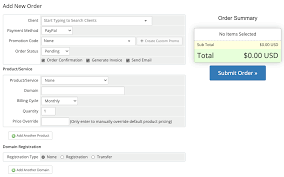
3. How to Create a New Order in WHMCS (Step-by-Step)
Step 1: Log in to WHMCS Admin Panel
- Go to your WHMCS admin dashboard.
- Navigate to Clients > Add New Order in the top menu.
Step 2: Select or Add a Client
- If the client is already in the system, search and select their account.
- To add a new client, click Add New Client, then fill in their name, email, and billing details.
Step 3: Choose the Product or Service
- Under Products/Services, select the hosting package, domain, or add-ons the client is purchasing.
- Choose the billing cycle (monthly, yearly, one-time payment).
Step 4: Configure Domain Options (If Applicable)
- If the order includes a domain name, choose Register, Transfer, or Use Existing Domain.
- Configure domain pricing, WHOIS protection, and nameservers.
Step 5: Apply Promotions or Discounts (Optional)
- If applicable, enter a promo code or manually adjust the pricing before finalizing the order.
Step 6: Choose Payment Method
- Select the payment gateway (PayPal, Stripe, credit card, bank transfer, etc.).
- If the client has already paid via offline methods, mark the order as Paid.
Step 7: Generate the Invoice
- Click Generate Invoice to create a bill for the client.
- The invoice will be available under Billing > Invoices in WHMCS.
Step 8: Activate the Order
- Click Accept Order to process the order.
- If it’s a hosting package, WHMCS will provision the account automatically.
- If it’s a domain, ensure the registration process is completed.
Step 9: Send Confirmation Email
- WHMCS will automatically send an order confirmation email.
- You can manually resend it by going to Clients > Emails > Resend Email.
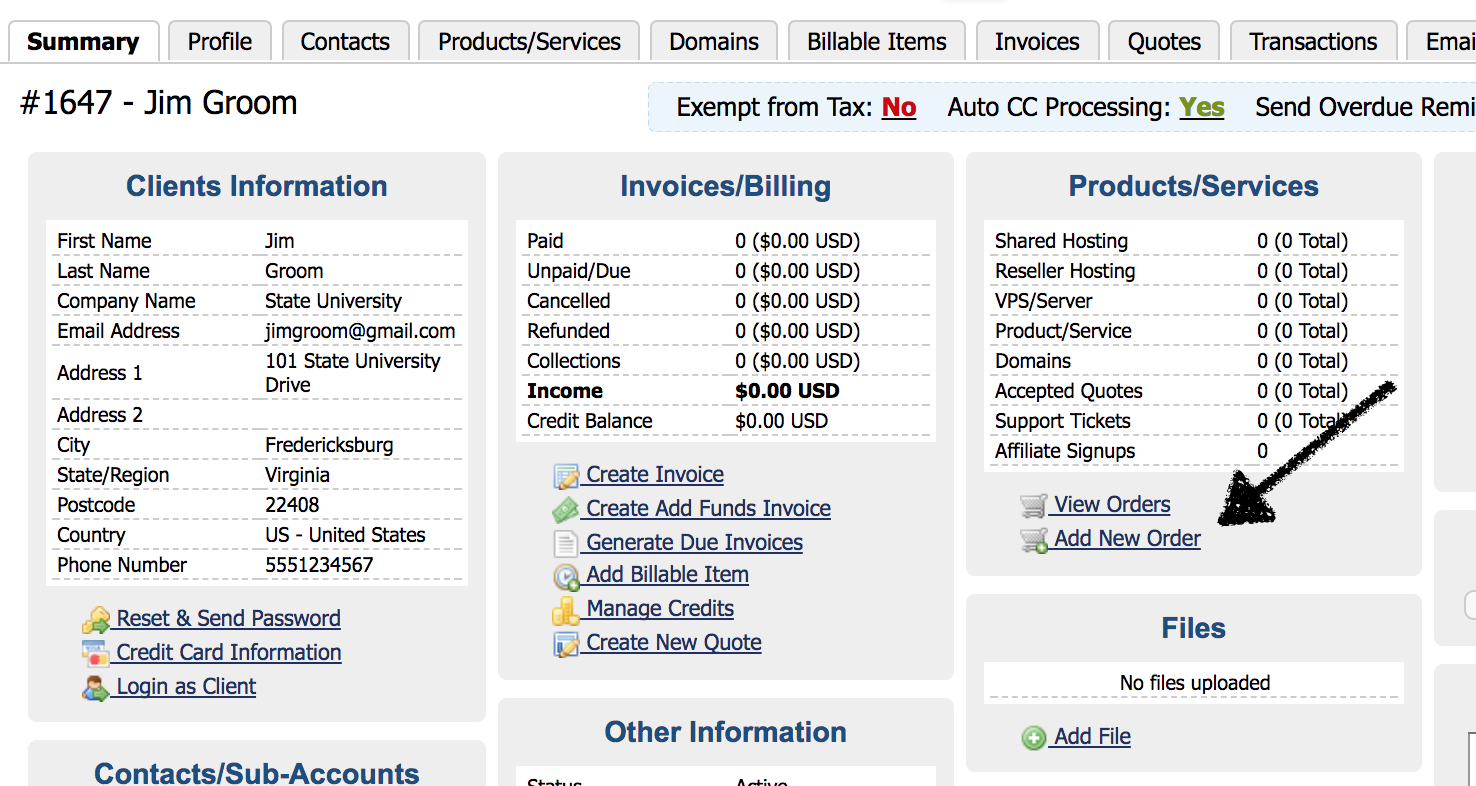
4. Managing and Reviewing Orders in WHMCS
Once an order is created, you can manage it from the Orders tab in WHMCS.
View Order Status
- Navigate to Orders > List All Orders to see all client orders.
- Status types:
- Pending – Order is created but not yet activated.
- Active – Order is completed, and services are active.
- Fraud – Marked as fraud by WHMCS or third-party fraud prevention tools.
- Cancelled – The order has been canceled by admin.
Modify or Cancel Orders
- Go to Orders > View Order to make changes.
- Click Edit to adjust service details, billing cycle, or pricing.
- To cancel an order, select Cancel Order and choose whether to issue a refund.

5. Common Order Issues and How to Fix Them
Issue 1: Payment Not Processed
🔹 Cause: The client didn't complete the payment or the gateway failed to process it.
✅ Fix: Check the payment gateway logs under Billing > Gateway Logs and manually verify the payment.
Issue 2: Order Stuck in Pending Status
🔹 Cause: Automatic provisioning failed.
✅ Fix: Go to Orders > List Orders, click the order, and manually accept it.
Issue 3: Fraud Detection Blocks the Order
🔹 Cause: WHMCS flagged the order as suspicious due to fraud detection settings.
✅ Fix: Review fraud settings under Setup > General Settings > Fraud Protection and whitelist the client if legitimate.
Issue 4: Hosting Account Not Created Automatically
🔹 Cause: Incorrect server configuration.
✅ Fix: Check Setup > Products/Services > Servers and verify the API connection to your hosting provider.







Comments 0
Sign in to join the conversation.
No comments yet. Be the first to say something.